Desert Online General Trading LLC
Dubai, United Arab Emirates
Desert Online General Trading LLC
Dubai, United Arab Emirates


🎮 Elevate Your Viewing Experience with BlueRigger!
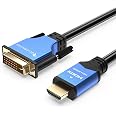
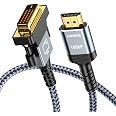
The BlueRigger HDMI to DVI Cable is a versatile 6FT adapter designed for seamless connectivity between HDMI and DVI devices. It supports high-definition 1080p resolution and features a durable aluminum shell, ensuring longevity and optimal performance. With advanced shielding technology, this cable minimizes interference, making it perfect for gaming consoles, streaming devices, and more. Plus, it comes with a lifetime warranty for peace of mind.


G**N
Really well made, high quality look, feel, materials! More than fair price!
UPDATE: JULY 2020 - In getting my home office setup and settled, I needed 2 more DVI-HDMI 6ft. cables for another system. The first set of 15ft cables I bought have been running 50-60 hours a week, and are perfect!BlueRigger cables are definitely high quality, well made cables! These as well as my 15ft cables are bi-directional, so one cable can connect to video card either by DVI or HDMI, and then to monitor with the other end! Very flexible when it comes to video cards/video sources and monitors! I had no hesitation when I needed 2 more to buy again! Cables match exactly what you see in pictures,, shipped fast! Thanks BlueRigger, any cable I need that you make, you have a customer for life!I was not paid or compensated for this review.APRIL 2020 - Never heard of this company, but needed (2) 15ft DVI - HDMI cables, and these were some of the few that allowed bi-directional connections (DVI - HDMI or HDMI - DVI) with a good review rating. I am incredibly happy with these cables! They look and feel super high quality, they do work bi-directionally, and are nimble enough to route through my multi-monitor stand cable management system! I will buy any cables I need that BlueRigger makes going forward! I would highly recommend them and these cables! I was not paid or compensated for this review.
S**
Great quality cable!
I use this cable to switch between multiple connections on my monitor and it's working great for that purpuse. I can switch to the VGA port to use my KVM and support several systems there, or back to my DVI port and this system. It allows me great flexibility in chosing which device uses the monitor at the time. The length is about right for placing a system on the floor behind a desk and them reaching up to a monitor that's mounted on a arm system like I have. It's long enough that I can swing the arms around and nothing binds. Great quality cable at a fair price.
B**L
Works just like I hoped it would!
This adapter is a must for anyone trying to hook a PC/Laptop to an HD TV. I have 2 computers hooked up to my 50" 720p Plasma TV, one is used as a media server and the other is used as a gaming rig. Prior to purchasing this cable I had my gaming rig hooked up with a VGA cable, I found that when I was using this cable the aspect was a little off and the brightness/contrast/color was also a little off. It seemed a bit blurry, faded or washed out. Since I purchased this DVI-to-HDMI cable everything is in perfect 720p aspect and all the colors appear accurate and vibrant. Reading text on the TV is MUCH easier which has always been an issue for me. Thank you for offering a great product at a very competitive price!Pros:- Excellent Build Quality- Easy to use/ dual purpose. Can hook PC to TV, or hook a game console up to a PC monitor.- Perfect HD Display- Cosmetically Pleasing- InexpensiveCons:- None so far
W**
Easy to use
Was exactly what I needed great quality and great value worked perfectly
D**Z
Hdmi cord
Works well
W**Y
Durable cable with good connections. Returned only because we recycled the old PC.
A durable cable, we didn't use this and returned it only because we got a newer computer. It certainly looks like it would do the job and it was the correct length. I expect it would work well.
A**R
An excellent HDMI-to-DVI-D-dual-link cable with an excellent low price! This cable should also work on a 2560x1440 display.
இ Fuzzy Wuzzy's Summary:ѾѾѾѾѾ Highly recommended with warm fuzzies!Prior to this purchase, I bought a BlueRigger 3.5mm audio cable from Amazon last year. Even though most 3.5mm audio cables are pretty basic and flimsy, I was highly impressed by the build quality of the BlueRigger audio cable. The same excellent build quality is also in this HDMI-to-DVI-D-dual-link cable. The thickness and shielding of this cable is very good, and the gold-plated connectors are solidly built. The cable sheath has the following words printed on it: "High Speed HDMI Cable with Ethernet E252840 AWM STYLE 20276 20276 80c 30V VW-1 BlueRigger". I am using this cable on laptops connected to a 1920x1200 24" IPS monitor and a 2560x1440 27" IPS monitor. This cable will work with all 1920x1080 and 1920x1200 display monitors.Even though nearly all HDMI-to-DVI and HDMI-to-HDMI cables only advertise themselves as supporting a maximum resolution of 1920x1200, most of these cables will work with a 2560x1440 display resolution. This BlueRigger cable also works with a 2560x1440 display. You will likely need to add a custom resolution since most graphics cards do not officially support resolutions higher than 1920x1200 via the HDMI port. If your graphics card is Intel HD Graphics (3000 or 4000), open up the "Intel Graphics and Media Control Panel" and click 'Custom Resolutions'. Try setting a 'Refresh Rate' of "60 Hz" and a 'Timing Standard' of "CVT-RB" (Coordinated Video Timings - Reduced Blank). If you get an error saying that the bandwidth is too low for the settings, try lowering the 'Refresh rate in 5-Hz increments. If a 60 Hz refresh rate does not work or produces image distortion or flickering, a 55 Hz or 50 Hz refresh rate should work in most setups, but you may have to go as low as 40 Hz or 35 Hz refresh rate, depending upon your hardware setup. If your video card is Nvidia, open up the Nvidia control panel, try setting 'Refresh Rate' to "60 Hz" and 'Scan type' to "Progressive". Expand the 'Timing' menu, set the 'Standard:' timing to "CVT reduced blank", and then click the [Test] button. Again, if you get image distortion or flickering, lower the refresh rate. After creating the custom resolution, you can select the 2560x1440 entry from the Nvidia Control Panel under 'Change Resolution'.
Trustpilot
4 days ago
2 months ago