

Desert Online General Trading LLC
Dubai, United Arab Emirates
Desert Online General Trading LLC
Dubai, United Arab Emirates

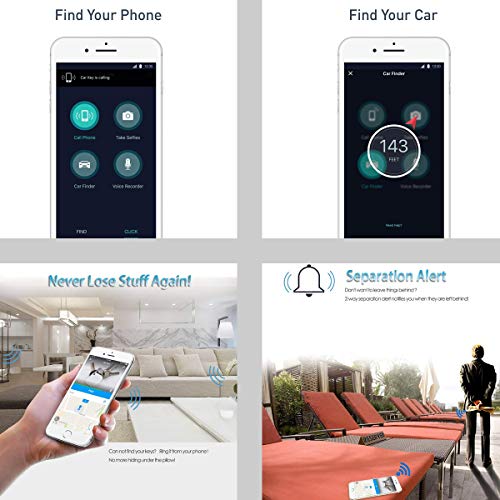
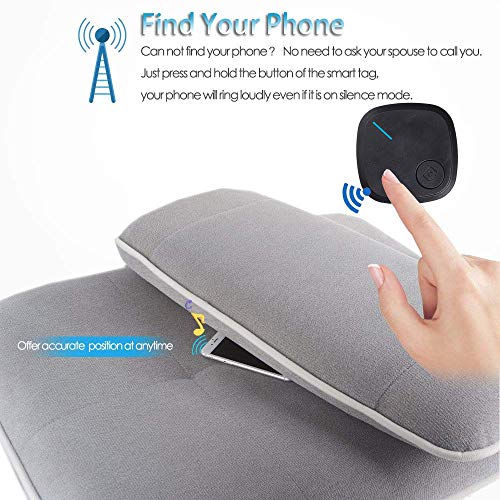
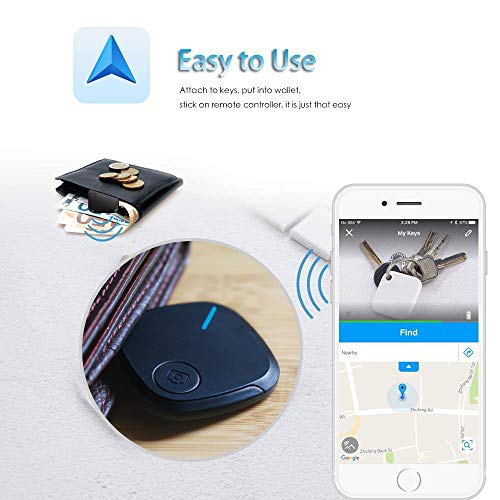
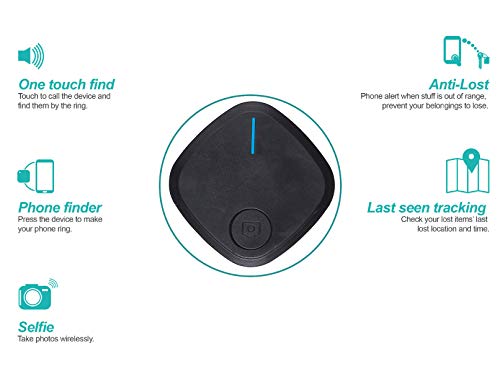


Full description not available
B**N
No more searching for my keys!
Love it! No more searching for my keys!
A**É
No
No gusta
R**T
Loud alarm so you can find your lost item!
Works great!
K**I
didn't work
never got it to work not worth it
R**R
Something of a Disappointment
UPDATEI've had this device on my phone for a couple of weeks now, and I have to admit that I'm a little disappointed in it. As I mentioned in my original review, in order for the device to find your phone using the "camera" button on the Finder, you must have the "inumen" application running on your phone. For this reason, I've made an effort to run the application in my phone in the background.Unfortunately, the application has "false alarmed" several times now, causing my phone to beep just as if the button had been pressed on the Finder. At first I thought my wife had been moving my keys and accidentally pressed the button, but the last several times this has occurred with my keys just sitting on the shelf in the other room. I can still use the "inumen" application on my phone to find my keys, but unless you want to deal with your phone beeping at odd moments, it doesn't work the other way around.ORIGINAL REVIEWI bought this wondering if something in this price range would even work. After working through some of the poorly written directions, I found that it was better than my expectations.As you can see from the photos, it came with the Finder itself, a small set of written instructions, and a little guitar-pick device to help you open the case in order to service the battery. The Finder has only one button on it, which the instructions label the "camera".After downloading the "inumen" application as described in the instructions, it took me some trial-and-error to pair it with my Galaxy Note 5 phone. Having paired other devices in the past, I mistakenly thought I'd be doing something under the Bluetooth settings (scanning for the device, etc.). If I'd payed more attention to the directions, I would have realized that everything you needed to do was in the "inumen" application.I eventually found that when you open the "inumen" application, you're greeted with five icons: "Devices", "Search", "Antilost", "Selfie", and "Help". To register the unit, you just press the "Devices" icon, press and hold the "camera" button on the Finder, wait until the device is listed, and click on a "+" button to add the Finder to your phone (you can optionally rename the Finder device at this point to something like "Key Fob"). The sequence for this is pairing are actually on the applications "Devices" page.Since at this point I was mistakenly back in my phone's Bluetooth setting, by own fault I wasn't getting any pairing. So I started wondering if the battery in the Finder was low, which led me - sooner that I'd thought - to open the device and look at the battery. The instructions say that in order to change the battery, "Open the cover using the snap gap." As it turns out, this is the very small gap where the Finder's lanyard attaches to it. The instructions say, "use any thin and firm device" to do this, but that's obviously what the guitar pick is for. Except, the pick isn't strong enough to ply the plastic apart; so I used a small screwdriver to get the plastic pieces of the Finder slightly apart, and then used the guitar pick to help me get them fully separated.Having gotten the battery out at this point, I put it on a dynamic tester and found out that it was fully charged. This was good news; sometimes devices I'd gotten in the past came with discharged batteries. So I put the Finder back together, figured out my mistake relative to paring, and got the Finder registered with my phone.So now could I find the Finder? Back in the "inumen", I clicked on the "Search" button. Down at the bottom of that page, there was another "+" icon that let me select my "Key Fob" device that I'd paired. After selecting my key fob, and a brief message that it was "connecting", the screen gave me a an inverted rectangle with a floating number and a graphic of a speaker. Pressing on the speaker icon (and then releasing it) caused the Finder to beep two times. The beep was loud enough for me to hear it down a flight of stairs and in another room.The floating number in the "Search" function isn't quite as good. According to the instructions, it supposedly shows me how far away from the Finder I am ("as a percentage"), but it's only mildly accurate. It's more like the kid's game "you're getting hot - you're getting cold", and the readings bounce all over the place. But the beeper is great!Also on the bottom of the "Search" screen is an icon that looks like a Google "map dot". When you press this, you get a map showing where your Finder is (see the screen shot of my phone showing the Finder at my house).The next thing I wanted to try was whether or not the Finder would beep my phone to help me find that. So with the "inumen" application closed, I followed the instructions and "Pressed the camera button 3 times in succession and it will cause your phone to alert." It turns out that just 2 presses of the button causes the phone to beep, but only if the "inumen" application is ALREADY running.I was never able to get the "Selfie" function to work. It would show me a picture, make the shutter click sound, but the picture would never show in my photo gallery. And while the "Antilost" function sounded interesting (reminds you if the item attached to the Finder goes out of range of your phone), I couldn't get that to work either (I only tried going out to about 60 feet from the Finder).And then the last thing: The little lanyard that you are supposed to use to tie the Finder to whatever you're tracking didn't appeal to me. So I simply took the lanyard off and drilled a little hole where it was attached so that I could add a spring clip.For it's limited functionality, this thing will certainly help me find my keys the next time I lose them.
Trustpilot
2 months ago
1 month ago