We remain fully operational. Our teams are working around the clock to ensure your deliveries continue safely.

DOWNLOAD THE APP


Customer Services
Copyright © 2025 Desertcart Holdings Limited
DOWNLOAD THE APP


🚀 Upgrade your workflow with lightning-fast, cool, and secure storage!
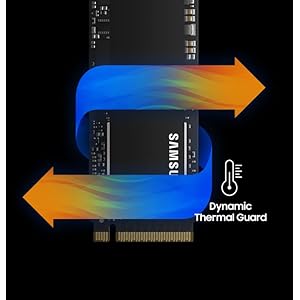
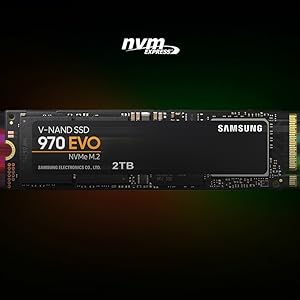
The Samsung 970 EVO 250GB NVMe PCIe M.2 SSD delivers industry-leading speeds up to 3,500MB/s read and 2,500MB/s write, powered by advanced V-NAND technology. Its Dynamic Thermal Guard ensures consistent performance by preventing overheating, while AES 256-bit encryption safeguards your data. With Samsung Magician software for easy management and a 5-year warranty, this compact M.2 2280 drive is perfect for professionals and gamers seeking reliable, high-speed storage that keeps pace with demanding workloads.






| ASIN | B07BN5FJZQ |
| Best Sellers Rank | #266 in Internal Solid State Drives |
| Brand | Samsung |
| Color | Black/Red |
| Customer Reviews | 4.9 4.9 out of 5 stars (37,559) |
| Date First Available | May 7, 2018 |
| Flash Memory Size | 250 |
| Hard Drive | 250 GB Solid State Hard Drive |
| Hard Drive Interface | NVMe |
| Is Discontinued By Manufacturer | No |
| Item Dimensions LxWxH | 0.87 x 3.15 x 0.9 inches |
| Item Weight | 1.92 ounces |
| Item model number | MZ-V7E250BW |
| Manufacturer | Samsung Electronics DAV |
| Operating System | Windows 10 Built 10240 |
| Product Dimensions | 0.87 x 3.15 x 0.9 inches |
| Series | 970 EVO |
T**R
Great! Fast!
Figured I'd write a review to maybe help someone. I bought two 1Tb versions of these, had some buyer's remorse, and was really worried about compatibility. The whole 2 lane PCIE 3.0 vs. 4 lane PCIE 3.0 had me spooked in terms of system stability and performance/cost. My first system, a Dell Optiplex 5070, I am so happy to report, is lightning fast with this SDD. The 3060 and 5060's have been reported to have only 2 lane support and Dell's documentation is useless - but user complaints of less than optimal performance on NVME M.2 SDD's are everywhere. Well, Dell must've updated that system because CrystalDiskMark shows the 3,000 MB/s+ of a four lane system. I used the Samsung Data Migration tool to image the OS from Dell included 500GB 7200RPM have drive no problem. But I also have a Dell 7480 (i5) laptop. I just bought it new- the price was good and I needed a compact laptop to carry around. There was no question it is 2 Lane - being older, I didn't even have to guess. So the quandary was, would the Samsung 970 EVO be backward compatible, stable, and the speed worth the additional $70 over a Crucial SATA SDD? The system came with a 128GB SATA M.2 SSD. First of all, transferring the image was pretty hard - and I'm very familiar with imaging hard drives. Many Dell laptops will not see this SSD until the BIOS settings are changed from RAID to AHCI. This is first and foremost otherwise this SDD won't be seen. I've seen this reported with many motherboards. Second, I have a USB to M.2 NVME and a USB to M.2 SATA adapter. (There's only one SSD slot in the laptop so no choice...) Even with the Samsung installed directly in the laptop, the SSD firmware updated, and the Samsung SSD driver installed, Samsung Data Migration will not recognize this drive. I suspect it's the 2-lane thing. And it definitely will not see it in the USB adapter because it see's the adapter controller, not the SSD's. In a nutshell, I resorted to mounting both SDD's in those USB adapters, and plugging them in my Optiplex (another computer), one then the other. I first took and image or the original Dell SATA using Macrium Reflect. Then I plugged in the Samsung and restored the image. This takes some knowledge of Macrium (and a little math) to resize the C: (OS) partition to the new drive. Using a separate computer is the only way I could get this to work. But it worked perfectly. And I transferred all partitions no problem, expanding C: at the same time. As far as it being worth it, I'm getting 1,500 MB/s on the laptop 2 lane. This is still 3X the speed of an M.2 SATA SSD. So Yes! In a nutshell, don't count on the Samsung Data Migration tool. Do load the Samsung SSD driver from their website and install it. Do look in your BIOS to change RAID to AHCI if the computer doesn't see the new SSD in the NVME slot. Macrium Reflect is free and works most of the time. And it is compatible with 2 Lane PCIE 3.0 - if you see 1,500 MB/s Read speeds, that's why.
M**R
500 GB of fast storage on a stick of gum
I love these things. It's hard not to give these drives 5 stars: they are fast, easy to install, don't take up any space, don't require any running of cables, they don't generate any noise, and they are getting more affordable by the day. I purchased this to install the upcoming Red Dead Redemption 2 to really speed up those load times and hopefully provide the best gaming experience. Obviously the game isn't out for a few more days so I will update my review if anything bad happens, which I do no anticipate. I've included a screenshot showing how the 970 Evo stacks up against 3 other storage devices in my PC: 1) another PCIe NVMe stick from Mushkin which my OS is installed on. 2) A more traditional SATA SSD drive which I have some of my most frequently played games on. It's a couple years old at this point, so take into consideration there are faster ones out there. 3) A 3 TB traditional platter based 7200 RPM HDD from Western Digital, for storage purposes. 'CrystalDiskMark' was used for testing. It is not my intention to disparage any other devices or manufacturers with this screenshot. All of the drives perform very well, my system boots up very fast on the Mushkin NVMe, and the games on my SATA SSD load way faster than if they were on a traditional platter HDD by multiple factors. I just want to show how the Samsung 970 Evo compares to other hard drive technology. A couple side notes. My motherboard either didn't include, or I misplaced, the screws needed to secure this drive to the motherboard (it may have only came with one set of screws, which I used to install my other NVMe at build time), so make sure you have the required screws before you attempt to install it. I ended up having to order a set of screws after I went through the hassle of unplugging everything, taking the side panel off, etc. Finally, as with all storage drives, you lose some capacity after it's configured for storage in the OS. In this case I lost 35 GB, so it became a 465 GB capacity.
S**C
Great for OS installation, fast
I upgraded my system with the SAMSUNG 970 EVO 1TB SSD, and I couldn't be more pleased with the performance! This M.2 NVMe drive offers lightning-fast read and write speeds, significantly reducing boot times and loading times for applications and games. The installation process was straightforward, thanks to its compact design. The 970 EVO fits perfectly into my motherboard's M.2 slot, making for a clean build without extra cables. Once installed, I noticed an immediate improvement in overall system responsiveness and multitasking capabilities.
S**E
inserito all'interno di un DELL precision 7530 ,funziona regolarmente
N**R
This is definitely a product to purchase if you are looking for a quick, easy and cheaper upgrade of your laptop. I have a MacBook Air early 2015 with 128GB SSD storage. I was looking to trade in for a newer Mac when I stumbled upon this product. Product was delivered on time, and it was very easy to change the existing SSD to this new one. It has been over 6 months now and my laptop works just fine, with both Windows and Mac running smooth.
L**E
What you see is what you get. Performance wise is speechless.
H**M
I like it use it to upgrade my ssd hard drive in my laptop
M**A
ممتاز
Trustpilot
1 month ago
1 month ago