Desertcart purchases this item on your behalf and handles shipping, customs, and support to Australia.
๐ Level up your retro game nightsโwireless freedom meets classic control!
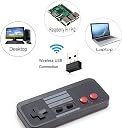
The KIWITATA Wireless USB Controller is a rechargeable, 2.4GHz wireless gamepad designed specifically for retro PC gaming on Windows, Mac, and Raspberry Pi platforms. Featuring an ergonomic design with a precise concave D-pad and anti-slip buttons, it offers over 10 hours of continuous play on a single charge and supports seamless pairing via USB dongle within a 30ft range. Ideal for emulated NES games, it delivers a nostalgic yet modern gaming experience for professionals craving authentic retro vibes without the clutter.


| ASIN | B08X6FSRPQ |
| Additional Features | Wireless USB Controller for PC |
| Best Sellers Rank | #7,069 in Video Games ( See Top 100 in Video Games ) #127 in PC Gamepads & Standard Controllers |
| Brand Name | KIWITATA |
| Button Quantity | 10 |
| Color | Gray |
| Compatible Devices | Windows,iOS,Raspberry Pi |
| Connectivity Technology | Wireless USB |
| Controller Type | Gamepad |
| Customer Reviews | 4.0 4.0 out of 5 stars (168) |
| Hardware Platform | For Raspberry Pi(4/3/2/1/Zero), PC/Mac/Linux/Unix, Raspberry Pi |
| Item Weight | 0.02 Kilograms |
| Manufacturer | KIWITATA |
| Model Name | Y-D002-239-K |
| Package Quantity | 1 |
| Power Source | Battery Powered |
J**H
Totally stinking awesome
I got this so I could play nes games on my Samsung Galaxy s22 (android) and its freaking awesome. Maybe its cause im old and used to a physical controller, but I just could not use the virtual on screen controller at all. I had to get a little USB A to USB C adapter (came with my phone anyway) but when I plugged it in it kinda worked right away. I could tell the buttons were doing something, just not the right thing, so I had to go into the emulator settings and configure (map) the buttons to the button theyre supposed to be. Once that was done, it worked like a charm. Its so stinking awesome. I've been wasting my life away playing the original legend of Zelda and finally made it to level 8. I couldn't have done it without this controller because I kept getting killed. I wasnt fast enough with the stupid virtual controller. Update: The controller stopped working after a while. Probably because I kept dropping it out of my front shirt pocket, which to its credit, it withstood countless drops before it quit working. It wouldn't take a charge and I couldn't get the light to come on anymore. Ive always been one to fix things so I took it apart to see if I could see a problem. The board appeared in good shape and I didnt see any cracked solder joints. I unplugged the battery from the board and plugged it back in. The light immediately started working. So I plugged it back in and charged it up and its been working just fine ever since. I have been extremely happy with this controller. **if anybody's controller stops working then try unplugging the battery and plugging it back into the board to "reboot" it. ** if I have any more updates I'll add them here. Hopefully this helps someone who's controller stopped working.
A**N
Excellent controller!
Setup for Nestopia emulator for windows 11. Charge the controller for 2 hours. Once the red LED stops flashing the controller is charged. Don't over charge as per the instructions. When you're ready to pair the controller press the "Start" button once. The red LED will start flashing slowly. Press the start button again, and it'll start flashing rapidly. When this happens the controller is ready to be paired. Just plug in the provided USB connector, and the red LED will become a steady light. Now for the Nestopia setup. Open Nestopia AFTER you establish connection with the controller, or it won't be recognized. After you start the emulator open "Options" at the top of the screen, and go to "Input" Choose "Select All" then enter the inputs. If you want 8-way direction, there will be a box that can be checked for simultaneous "UP" and "Side" movement. NOTE: You DO NOT need all of the inputs that are offered. "," is "B" "." is "A" "Right Shift" is "Select" and "Start" is "Enter" "Left" is Left etc. on the D-pad. "Enter/Start" should be the last input you need. Afterwards hit "Ok" and you're set up. close options and enjoy!
A**O
Actually pretty solid!
Actually pretty solid controllers. Havenโt yet depleted the battery so it holds up well there. The buttons feel responsive for the most part, there are a few hiccups here and there. The curved edges are sure a choice, although i prefer the original shape and buttons of the official controller. They work on Switch as well and thats a great feature.
S**S
Did not pair.
Crappy. Did not pair with my Nintendo Switch.
A**D
So far so good.
Very comfortable wireless NES controllers. They're just like original retro NES controllers but nicer with the rounded corners. After charging with a recommended 5V/1A wall charger (took about 2 hours) they paired very easily to a PC (just follow the basic instructions in the booklet it comes with). I'm using them with a Beelink S12 N100 Mini PC and running the FCEUX NES emulator. All I had to do in FCEUX was configure the Gamepad buttons in the input settings and they work perfectly. Response from the pad and buttons and the range are also good (around 30 feet) and I like that they automatically turn off after about 3 minutes when not in use to save battery power. To turn them on again, just press the start button. Couldn't be simpler. The test now is just time and use to see how durable they are and how long they hold up for.
A**R
Great value
They work great. I play adventure island like a champ on my "linux mint" laptop
A**R
Higher Quality than what You Might Expect; Good Range
I am an avid retro gamer, as I use a number of emulators and play many older games from the 8-bit NES era. For many years, I was dead-set on using only original and authentic wired Nintendo brand controllers from the 1980s and then converting that original interface to USB before plugging that into the computers that were emulating the games. It was part of the "keeping it real" vibe that I was seeking, even though that's kind of an oxymoron when considering that I'm emulating them through a computer anyway. More recently due to my setups changing and the original controller's cable being too short to reach my seating, I figured I would branch out a little bit and go for something wireless. I'll admit that I was skeptical, but in the same breath I will say that I am fully surprised and more than pleased with the wireless setups I now have. Response is great, range is good to great, and the quality of the controller is much higher than I was expecting. A nice little bonus, since we're talking about changing things up a little bit anyway, is that the controller is essentially the same size and the buttons and everything are in the same "position" or "spot" which helps "keep it real" -- but the corners of the controller have a very slight but noticeable radius to them that makes them quite a bit more comfortable than the original models from the 1980s. I highly recommend.
G**4
Meh - Works with NVIDIA Shield, but only 1 of them at a time
Bought this to use on the NVIDIA Shield with NES Emu. Buttons did not map properly, but were easily remapped and I was able to set it up as a regular NES controller. When I plugged the 2nd USB dongle in, it never showed up. The Shield couldn't tell the two dongles apart, and acted like they were the same controller! So you can only use 1 controller at a time on the Shield, acting as player 1. Feels great to use, just wishing they would show up as 2 separate devices.
K**.
Incompleto
Incompleto Falta una pieza
Trustpilot
1 month ago
3 weeks ago