We remain fully operational. Our teams are working around the clock to ensure your deliveries continue safely.
DOWNLOAD THE APP


Copyright © 2025 Desertcart Holdings Limited
DOWNLOAD THE APP









Buy anything from 5,000+ international stores. One checkout price. No surprise fees. Join 2M+ shoppers on Desertcart.
Desertcart purchases this item on your behalf and handles shipping, customs, and support to Australia.
🎧 Level up your game chat—never miss a beat or a word!
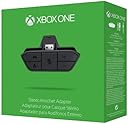
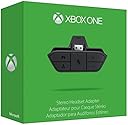
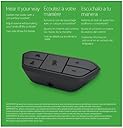
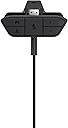
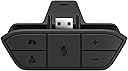
The Xbox One Stereo Headset Adapter enables gamers to connect compatible 3.5mm headsets directly to their Xbox One or Series X controllers, delivering crystal-clear stereo game audio and chat. Featuring intuitive volume and chat/game balance controls, it supports legacy Xbox 360 headsets via included adapters and optical audio connections. Lightweight and compact, it offers seamless integration without extra console or TV wiring, making it an essential accessory for immersive, hassle-free multiplayer communication.


| ASIN | B00IAVDOS6 |
| Batteries | 1 Lithium Ion batteries required. |
| Best Sellers Rank | #23,334 in Video Games ( See Top 100 in Video Games ) #67 in Xbox One Adapters |
| Customer Reviews | 4.3 4.3 out of 5 stars (4,888) |
| Date First Available | February 10, 2014 |
| Department | Gamers (Budget-conscious/Deal seekers) |
| Is Discontinued By Manufacturer | No |
| Item Weight | 1.13 ounces |
| Item model number | 6JV-00006 |
| Manufacturer | Microsoft |
| Product Dimensions | 5.8 x 5.6 x 1.9 inches; 1.13 ounces |
| Rated | Rating Pending |
| Release date | March 7, 2014 |
| Type of item | Video Game |
S**N
Great Adapter - Functionality Explained
NOTE: EDITED STEPS UNDER FUNCTION 1 - ADDED STEPS 6 & 7 to resolve common issues. I purchased this product to allow me to use my Turtle Beach DX12 microphone for in-game chat (instead of the Kinect mic). It works flawlessly. But for those of you out there considering purchasing this product you should know it basically serves TWO purposes, and based on what you're using it for depends on how the volume control buttons on the Stereo Headset Adapter will work. FUNCTION 1: Using the adapter to allow your old gaming headset that had OPTICAL AUDIO inputs (Turtle Beaches, Astros, etc) to work with the Xbox One the same way it did with the Xbox 360 (you plug the 2.5mm "chat audio cord" into the Stereo Headset Adapter so your 3rd party headset's microphone works and you can hear and control chat volume via you're 3rd party headset and/or the buttons on the adapter). When using the adapter this way, in order to get the functionality that you're looking for (using the 3rd party headset's microphone for chat while getting game audio ONLY from the optical out of the Xbox One) you will need to do the following: 1) Turn your system on 2) Update the controller 3) Connect the 2.5mm cord from your 3rd party headset to the adapter 4) Push the bottom left button on the adapter (looks like a person with a "+" sign on their body) until you hear a beep - This will set the volume output ratios coming from the Adapter to 0% Game Volume & 100% Chat. *NOTE*: If you don't have them set this way you will here a slight "Echo" in game because the adapter will output game volume as well as chat volume, and you don't need any game volume from the adapter since you're getting it from the Optical Output from the Xbox One. 5) Now you can use the 2 right buttons (the "Master Volume" buttons) to control the in-game chat volume. 6)* IF YOU HEAR A CRACKLING SOUND and you have your Xbox One's Dolby Digital Surround ENABLED VIA OPTICAL OUT you must HARD RESET YOUR CONSOLE after completing the above steps (Hold Power Button for 10 secs, let system power off, wait 10 seconds and turn the system back on). This will fix the occasional "crackling" problem. 7)* For some reason this adapter makes the MICROPHONES SUPER SENSITIVE. If you're in a party and YOUR FRIENDS ARE COMPLAINING THAT YOUR MIC SOUNDS BAD/LOUD you simply need to move the mic farther from your mouth (6" worked for me) and talk in a normal volume. This stops the "poor" quality microphone sound from occurring. I was told this issue may be getting fixed in an upcoming firmware update. --------------------------------------------- FUNCTION 2: Using this adapter to allow ANY HEADSET to provide you in game audio and chat functionality (if the headset already has a built in microphone) When you use the adapter for this purpose the GAME and CHAT audios are derived from the controller (comes out of the Stereo Headset Adapter that you plug the headphones into). Since both forms of audio are coming from the adapter, the volume adjustment buttons serve the purposes shown in the instruction manual: Left of the mute button ==> Changes the Game/Chat volume ratios (For example you're at 50% Game and 50% Chat, then the game and chat volumes will be at the same level... if you're at 70% Game and 30% Chat, then you're game volume will be louder than the chat volume, but you can still hear both... if you're at 100% Game and 0% Chat, then you have full game volume and you won't be able to hear chat - it's effectively "muted") Right of the mute button ==> This is the "Master Volume" control. Once you have you're game/chat ratios where you like them... you can then increase the OVERALL AUDIO OUTPUT using this button. Hope this helps you out!
C**N
It works great. I can use Turtle Beach X11 and Turtle Beach DSS with Xbox One.
(FIRST METHOD. CHAT FROM CONTROLLER AND GAME AUDIO FROM TV/CONSOLE TO HEADSET) bought this so that I could use my Turtle Beach X11 headphones and Turtle Beach DSS surround sound processor that I had for my Xbox 360 on my Xbox One. And it works great but do read to understand. There are two ways this adapter can be used. Now I really like the sound of my headset and the processor. But those only hookup either to the tv or console. (FYI bonus I have the Xbox One set up for digital bitstream out through hdmi with Dolby turned on. My tv has surround sound output via optical cable that is sent to the DSS and that is sent into the Turtle Beach.) So without the adapter I was getting a game sound that I was happy with. Just no chat. THE ONLY REASON I BOUGHT THIS ADAPTER WAS SO THAT I COULD GET CHAT WITH MY CURRENT SETUP. So I take the chat cable from my turtle beach into the included 2.5mm to 3.5mm cable adapter into the stereo chat adapter. And yes this product comes with both the stereo headset adapter and the cable adapter. From there the key VERY important thing to do is hold the chat mix button (looks like a person on the adapter) until a beep is heard. If not the headphones are going to get game audio from the tv and the controller which will not sound right. So to clarify my headphones get both game and chat audio. Game audio from the tv to DSS and chat from the controller via the adapter. It works great. THE 2ND METHOD (GAME AND CHAT FROM CONTROLLER). Now I don't use this method, because I like having my DSS in the mix, but I'm mentioning this for others. It's possible to plug this adapter into the Xbox One controller, then plug your 3.5mm headset that has a mic into this adapter (though I think your headset would have to have a single cable out from it. There might be a way for it to work with a separate chat and audio cable going just into the controller, but I'm not sure how. If your headset has separate cables I think you'll have to use the first method minus the processor unless you have that too.) and get both game and chat audio from the controller with no wires coming out of the tv. Simple. A simple setup. To clarify. Method 2 allows for both game and chat audio to come from the controller. Also I'll ,mention this that the apple earphones that came with my iPhone 6 Plus aren't compatible. I plugged them into the 3.5mm port of my controller and get a constant high pitch sound. Look up the Xbox support page. They mention something about a headphone industry standard that I forget. Now I found the adapter easy to understand. Mute switch in the middle. Volume is on the right. (+ and - symbols). Game/Chat balance on the left. Now I think this is what confuses people. Remember overall volume is on the right. The left is to adjust if you want more or less game vs chat in the mix. The controller symbol is game audio and the person is chat audio. So for example if the mix has the game overpowering the chat don't adjust the right side. Instead click on the person icon on the left to decrease game audio and increase chat. The right side is only to adjust the volume for everything. It's like a master volume. Use the right side to turn down the volume if it's too loud or up if it's too low. The left is to emphasize the chat or game audio. Like I said earlier I cut out the game audio completely from the controller, because I I have it getting to the headset via the tv. If you just plug into the controller only for game and chat then you will probably want a mix of the two. Hope this helps.
J**H
)
Works perfect
C**E
Plug in and game on!
This headset adapter is just what I needed to use one pair of headphones to simultaneously listen to voice chat (aka openly mock other players) and in-game audio while pwning noobs in BF4 and CoD: Ghosts. High quality build and easy to plug in and start playing. There are several configurations and considerations when deciding whether to buy this. First, if you're planning to use this with your 360 headset do some research. I assumed mine would work right out of the box, but I needed another mic audio cable to go from the adapter to the volume control on my Triton gear. This will work with any headset that uses the CTIA plug standard. My Apple headphones did not work, but my Samsung headphones work great. You'll have to find out if yours will work right out of the box. There was a warning label on mine that required an update before playing. It comes with everything necessary to perform the update though. You'll need to plug the included USB cable into the top of the controller and the USB port on the left side of the XBox and then plug the included 3.5mm audio cable in to the bottom of the adapter. Four stars because even though it's clear about what standards will work and what wont, it was a little more difficult to plug in and game than it needed to be. It's not rocket science, but it requires the user to do enough homework that I took a star away. This should not reflect poorly on the device's build quality.
E**M
Works great
Works great
L**S
This is the product you need. Solid build quality and works exactly as advertised. Great reliability and still after 8 years this product still works!
C**N
Este adaptador es muy bueno si tienes un control de Xbox de los antiguos que no tienen la entrada de 3.5 mm, es muy rápido de usar, ademas de tener los botones del Headset original de Xbox tiene otros dos que sirven para subir el volumen ya sea del juego o de la charla de voz y algo que no muchos saben o al menos yo no sabia es que incluye un cable adaptador para los audífonos que tienen una entrada mas pequeña a la de 3.5 mm. El servicio de Amazon muy bueno llego un día antes de lo esperado y no hubo problema alguno con el pago
S**E
Good piece of equipment for playing on line
J**N
tudo certo com o produto, funcionando normalmente, só não veio com nota fiscal para questão de garantia.
A**R
worth it
Trustpilot
1 week ago
4 days ago